

Key Takeaways
Two-Factor Authentication (2FA)
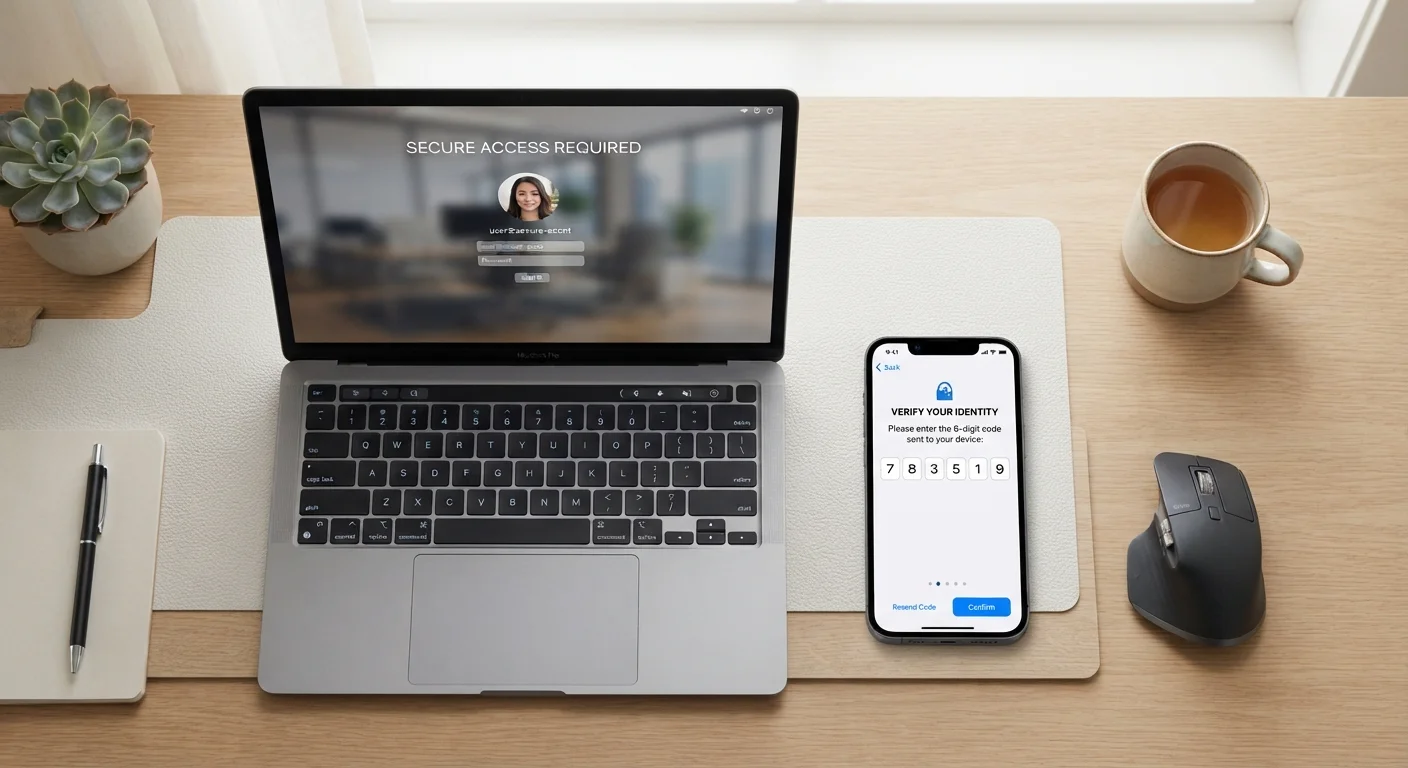
Two-factor authentication is a security process that requires you to verify your identity in two separate ways before gaining access to an account. The first factor is typically your password; the second is something only you can access in that moment — like a code sent to your phone. Even if someone steals your password, they still can't get in without that second factor.
2FA is a subset of multi-factor authentication (MFA), which can require three or more verification types drawn from categories: something you know, something you have, and something you are.
Why Your Password Alone Isn't Enough
Passwords get compromised constantly — through data breaches, phishing emails, credential-stuffing attacks, and simple reuse across sites. When a service you use is breached, your email and password combination may end up in lists sold on the dark web and tested against dozens of other sites automatically.
Two-factor authentication (2FA) breaks this chain. Even if an attacker has your correct password, they hit a second wall that requires physical access to something only you possess — your phone, an authentication app, or a hardware key. That separation between "what you know" and "what you have" is the core of why 2FA works.
Start With Your Most Critical Account
If you're new to 2FA, don't feel pressured to enable it everywhere at once. Start with your primary email account — the one used to recover other accounts. Securing that single account delivers the greatest protection for your entire digital life. From there, work outward to financial and social accounts.
The Main Types of 2FA — and How They Differ
Not all second factors are equal. Here's how the most common types stack up:
- SMS text codes: A one-time code is sent to your phone number. Easy to set up, widely supported, but vulnerable to SIM-swapping attacks where a fraudster hijacks your number by deceiving your carrier.
- Authenticator apps: Apps like Google Authenticator or Authy generate time-based codes directly on your device — no carrier involved. Codes refresh every 30 seconds and never travel over a network, making them significantly harder to intercept.
- Hardware security keys: Physical USB or NFC devices that you tap or insert. They use a cryptographic challenge-response method (often the FIDO2 standard) that is immune to phishing because the key only responds to the exact legitimate site, not a lookalike.
- Push notifications: Some services send an approval prompt to a registered app. You tap "Approve" to confirm the login. Convenient, but a determined attacker can flood your phone with requests hoping you'll tap approve by accident — a tactic called MFA fatigue.
- Biometrics: Face ID or fingerprint scans used as a second layer on mobile devices. Secure in practice for most users, though they represent "something you are" rather than something you possess.
99.9%
Of automated account attacks blocked by MFA
Microsoft has reported that enabling multi-factor authentication blocks approximately 99.9% of automated credential-stuffing and password-spray attacks against accounts.
~80%
Of breaches involve compromised credentials
Verizon's Data Breach Investigations Report has consistently found that a large majority of hacking-related breaches involve stolen or weak passwords, underlining the need for a second layer.
What 2FA Protects Against — and What It Doesn't
2FA reliably stops attackers who have stolen your password but have no access to your second factor. This covers the vast majority of credential-based breaches and account takeover attempts.
Where 2FA falls short is in real-time phishing attacks. A convincing fake login page can capture your password and your one-time code simultaneously, then replay them instantly on the real site before the code expires. Authenticator app codes are still vulnerable to this; hardware keys using FIDO2 are not, because they cryptographically bind the response to the actual domain you're visiting.
2FA also doesn't protect you if the account recovery process itself is weak. If a service allows password reset via an unauthenticated email link, attackers may bypass 2FA entirely by targeting your inbox. This is why securing your primary email account — with a strong, unique password and 2FA — is the single most impactful step most people can take. Pairing 2FA with a good password practice is the foundation; see our guide to getting started with password managers for the other half of that picture.
"Trust This Device" Has Trade-offs
Many services offer to skip the second factor on devices you use regularly. This reduces friction but means anyone with physical access to that trusted device can log in without the extra check. On shared or public computers, always decline the "trust this device" option.
Setting Up 2FA: What to Expect
Enabling 2FA on most major services takes under five minutes. You'll find the option in account security or privacy settings, usually under a label like "Two-Step Verification" or "Login Verification." The process typically looks like this:
- Choose your second-factor method (authenticator app is a solid default choice for most people).
- Scan a QR code with your authenticator app, or enter the provided key manually.
- Confirm with a test code to verify the setup worked.
- Save your backup codes somewhere secure — a printed copy in a safe place, or inside a password manager.
That last step is frequently skipped and frequently regretted. Backup codes are your recovery lifeline if you lose or replace your phone. Store them before you need them.