

Key Takeaways
Start here
What You Need Before You Start
Next
Understanding Your Hardware
Then
Router Placement and Wi-Fi Coverage
Apply it
Initial Router Setup and Key Settings
Stay safe
Basic Network Security from Day One
What You Need Before You Start
Setting up a home network for the first time is more straightforward than it sounds — but having the right pieces in place before you begin saves significant frustration. Here's what you'll need:
- Internet service: An active subscription with an Internet Service Provider (ISP). This is the pipeline that connects your home to the broader internet.
- A modem (if not provided by your ISP): Converts the signal from your ISP into something your home network can use.
- A router: Creates your local network and distributes the internet connection to your devices wirelessly or via cable.
- An Ethernet cable: Useful for the initial wired connection between modem and router, and for devices that benefit from a stable wired link.
Your ISP may supply a combined modem/router — often called a gateway — which simplifies the hardware side. If you're setting up a new home at the same time, the home buying process often involves coordinating ISP installation as part of move-in logistics.
ISP
Internet Service Provider — the company that supplies your home with internet access via cable, fiber, DSL, or other technologies.
Router
A device that manages data traffic between your home devices and the internet, creating your local network and distributing Wi-Fi.
Modem
Hardware that converts your ISP's signal into a standard network connection your router can use.
SSID
Service Set Identifier — the visible name of your Wi-Fi network that devices see when scanning for available connections.
WPA3/WPA2
Wi-Fi Protected Access protocols that encrypt wireless traffic on your network. WPA3 is the current standard; WPA2-AES is an acceptable alternative.
Firmware
Built-in software that controls your router's hardware. Manufacturers release firmware updates to fix bugs and patch security vulnerabilities.
Gateway IP
The router's local network address — typically 192.168.1.1 or 192.168.0.1 — used to access its admin settings through a browser.
Mesh Wi-Fi
A system using multiple coordinated nodes to provide seamless Wi-Fi coverage across a larger area, eliminating dead zones.
Understanding Your Hardware
Knowing what each device actually does prevents confusion during setup.
- Modem
- Connects your home to your ISP's network. It translates the incoming signal — whether cable, fiber, or DSL — into standard network data.
- Router
- Manages traffic between your devices and the internet. It assigns local IP addresses, handles wireless broadcasts, and acts as a basic firewall.
- Switch
- Expands the number of wired ports available. Most home routers have four built-in Ethernet ports, which is enough for the majority of households.
- Mesh system
- A set of coordinated nodes that work together to blanket a larger home in Wi-Fi. A good option for multi-story homes or layouts where a single router struggles.
Once your hardware is connected and powered on, you'll typically see indicator lights confirm the modem has an internet signal and the router is broadcasting. If you're also setting up new devices on this network, the device setup checklist covers accounts, updates, and security steps worth completing early.
Router Placement and Wi-Fi Coverage
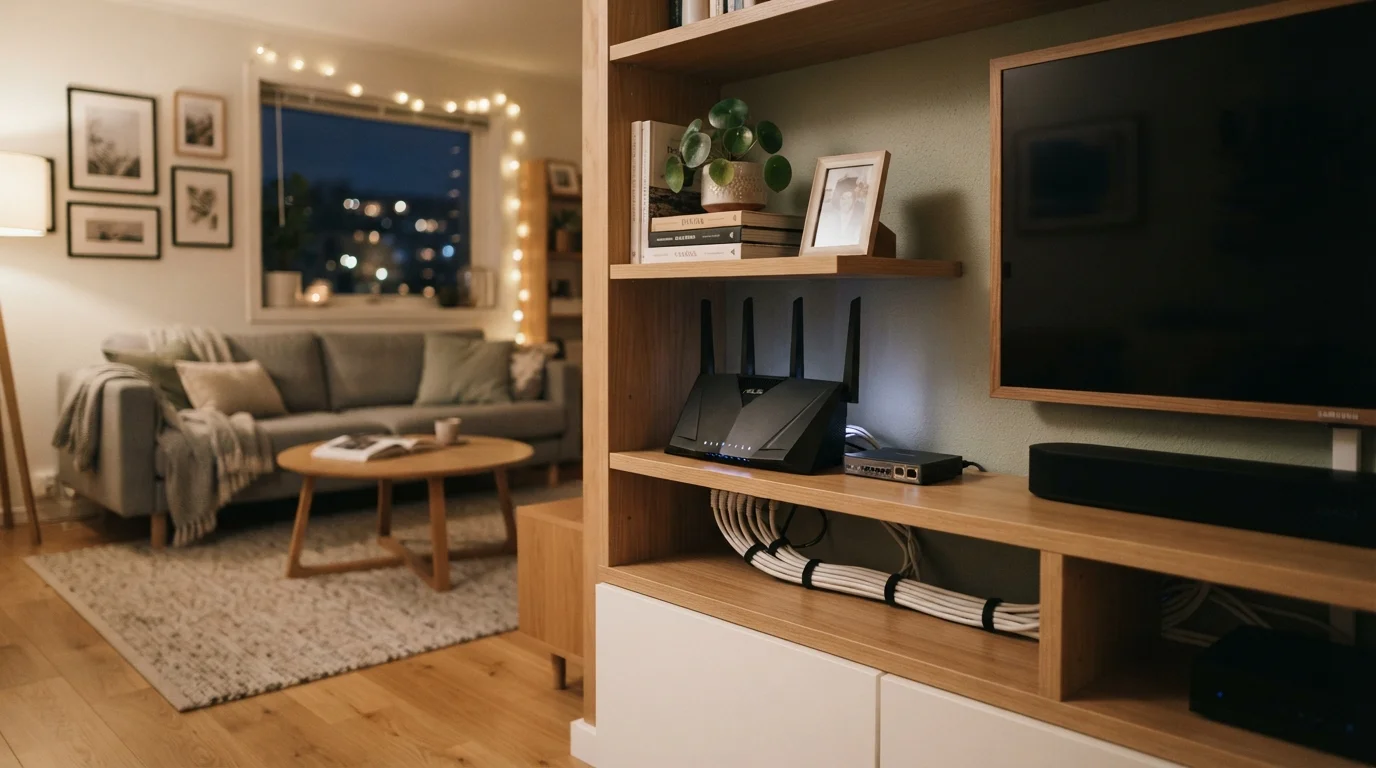
Physical placement is one of the most underrated factors in home network performance. Wi-Fi signals radiate outward in all directions and weaken with distance and physical obstacles.
- Central location: Place the router as close to the center of your living space as possible to distribute signal evenly.
- Elevated surface: Routers broadcast signals slightly downward, so a shelf or desk height works better than the floor.
- Away from interference: Microwaves, cordless phones, and neighboring Wi-Fi networks can all interfere with your signal. Keep the router away from appliances and exterior walls.
- Open space: Avoid enclosing the router inside a cabinet or closet — this noticeably reduces range.
Test Coverage Before You Finalize Placement
Before committing to a router location, connect a device and walk through the rooms you use most — checking signal strength on your phone's Wi-Fi indicator. This quick test reveals weak spots before you've tucked the router behind furniture permanently.
Homes with thick concrete or brick walls, or multiple floors, may benefit from a mesh Wi-Fi system rather than a single router. A mesh setup uses multiple nodes to create seamless coverage without the dead zones a single router can leave behind.
Initial Router Setup and Key Settings
Most routers walk you through first-time setup via a mobile app or a browser-based admin interface. Access the admin panel by typing the router's gateway address — commonly 192.168.1.1 — into your browser while connected to the network.
During setup, prioritize these settings:
- Network name (SSID): Choose a name that doesn't reveal your address, your full name, or the router's brand. Each detail helps narrow your exposure.
- Wi-Fi password: Use a strong, unique passphrase — at least 12 characters mixing letters, numbers, and symbols.
- Admin username and password: Change the router's default login credentials immediately. Default passwords are publicly listed for most router models.
- Wi-Fi band selection: Most modern routers broadcast on both 2.4 GHz and 5 GHz. The 5 GHz band is faster but has shorter range; 2.4 GHz reaches further but is more congested.
- Firmware update: Check for a firmware update within the admin panel before finishing setup. Manufacturers release these to fix security vulnerabilities.
After initial setup, you may want to explore setting up a guest Wi-Fi network to keep visitor devices off your main network.
Router Admin Interface Guide
Most router manufacturers publish a support guide explaining how to access and navigate their admin interface. Check your router brand's official support site for model-specific instructions.
ISP Support Portal
Your internet provider's support documentation covers modem activation, gateway configuration, and troubleshooting steps specific to their service and equipment.
Home Network Audit Checklist
A structured checklist to verify your network's security and performance settings once it's running — useful for confirming your initial setup covers the essentials.
Basic Network Security from Day One
A freshly configured router is only as secure as the choices you make during setup. These steps create a meaningful baseline of protection:
- Enable WPA3 or WPA2-AES encryption: This protects the wireless traffic on your network. Avoid older standards like WEP or TKIP.
- Disable WPS (Wi-Fi Protected Setup): This convenience feature has known vulnerabilities and is generally not worth keeping active.
- Turn off remote management: Unless you specifically need to access your router from outside your home, disable this feature in the admin settings.
- Review connected devices periodically: Your router's admin panel lists every device on your network. Unfamiliar devices are worth investigating.
Never Keep Default Router Credentials
Factory-default usernames and passwords are publicly documented for nearly every router model. Leaving them unchanged makes your router's admin panel easily accessible to anyone on your network — or potentially beyond. Change both the admin login and the Wi-Fi password before connecting any devices.
For a more thorough review of what can go wrong and how to address it, the home network security guide covers the most common vulnerabilities in detail. Once your network is live, use the network audit checklist to verify your configuration covers the essentials.