

Key Takeaways
App Permissions
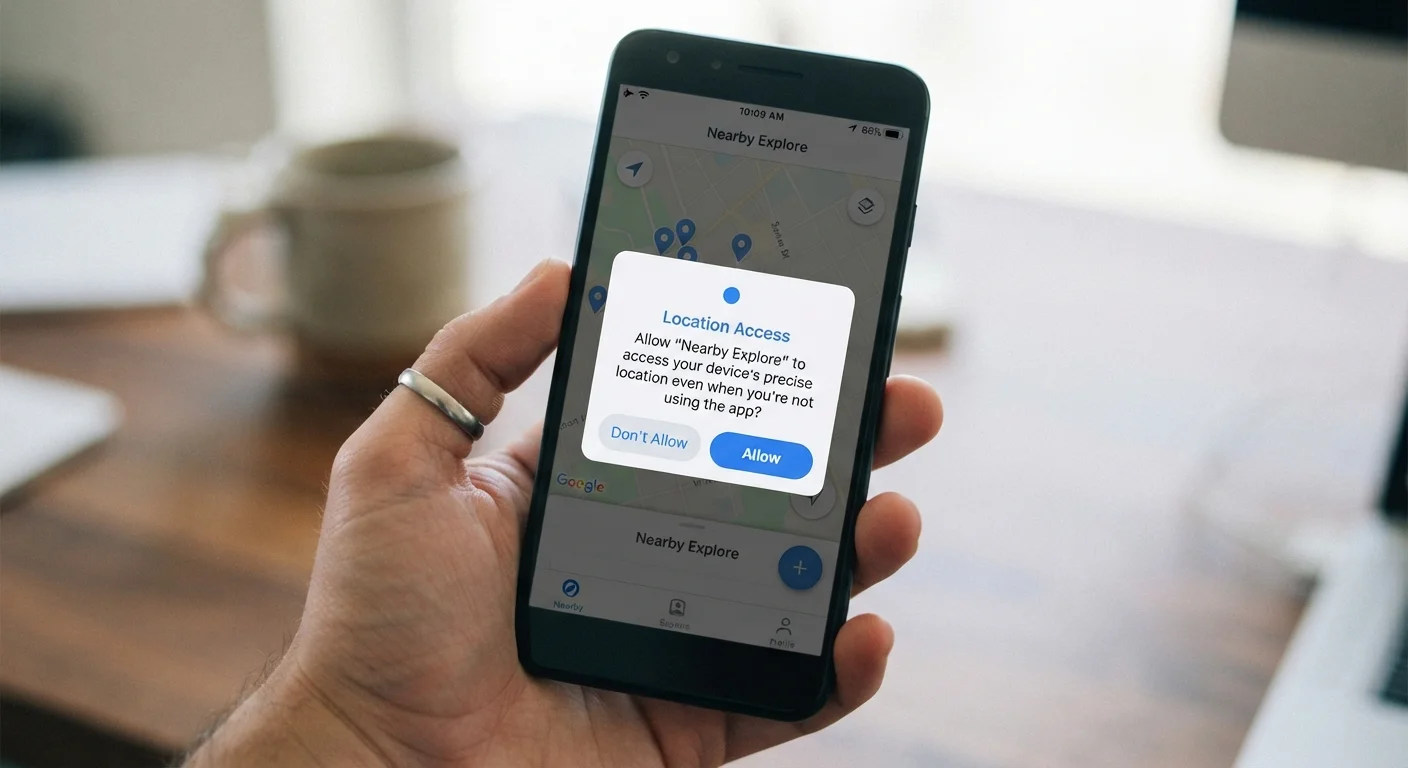
App permissions are explicit requests an application makes to access specific features or data on your device — such as your camera, location, contacts, or microphone. Your operating system (iOS or Android) presents these requests as prompts, and you choose whether to grant or deny them. Permissions act as a gatekeeper between an app and your personal information.
Permissions are enforced at the OS level through a sandboxing model — each app runs in an isolated environment and cannot access system resources or user data without explicit grants.
What Each Common Permission Actually Accesses
When an app requests a permission, it's asking for a specific door to be unlocked — and knowing what's behind each door matters. Here's what the most common permission types actually touch:
- Location: Your GPS coordinates, which can be precise (within meters) or approximate. Used legitimately by maps and weather apps; more questionable for, say, a flashlight app.
- Microphone: Real-time audio input from your device. Essential for voice calls, voice-to-text, and audio recording apps. Should be scrutinized for apps that have no obvious audio function.
- Camera: Access to take photos or video, sometimes including front and rear cameras. Video conferencing apps need this; most others don't.
- Contacts: Your full address book — names, phone numbers, email addresses, and sometimes notes. Messaging apps often request this to find friends; ad-supported apps may use it for audience targeting.
- Notifications: The ability to send alerts to your lock screen and notification tray. This isn't a data-access permission but can become an attention-drain if over-granted.
- Storage / Photos: The ability to read or write files on your device, including your photo library. A photo editing app needs this; a game usually doesn't.
Each permission category has a legitimate use case — the key question is whether the specific app in front of you has a plausible reason to need it.
Permissions Aren't the Same Across All Apps
Native apps downloaded from an app store request permissions through your device's operating system — giving you a clear prompt and a record in Settings. Web apps running in a browser use a different mechanism with fewer standardized controls. If you use both types, understanding the difference between native and web apps helps clarify what protections apply in each case.
How to Spot a Red Flag Permission Request
Not every unusual permission request signals a bad actor, but some patterns deserve a pause. A few questions worth asking before tapping 'Allow':
- Does the permission match the app's core function? A calculator requesting microphone access has no obvious justification. A recipe app asking for your contacts is similarly hard to explain.
- Is the app from a developer you can verify? App store listings include developer names and websites. An unfamiliar publisher requesting broad permissions warrants more caution. The app store discovery process doesn't guarantee every featured app is trustworthy.
- Can the app function if you deny it? Test by denying first — many apps work fine without the permission they requested. If the app becomes unusable, that's informative data.
Try Denying First — Then Decide
When an app requests a permission you're unsure about, try denying it and continue using the app normally. If a key feature breaks, you can always grant it afterward. This 'deny-first' approach helps you determine which permissions are genuinely necessary versus which are just opportunistic requests.
Apps that won't function at all without a suspicious permission — and have no clear reason to need it — are worth reconsidering entirely. You can review permissions for apps already on your device as part of a broader app audit.
Managing Permissions You've Already Granted
Most people grant permissions reflexively during setup and never revisit them. Both iOS and Android make it straightforward to review and tighten what you've already allowed.
On iPhone/iPad: Go to Settings > Privacy & Security. Each category (Location Services, Microphone, Camera, etc.) lists every app that has requested that permission, and you can toggle them individually.
On Android: Go to Settings > Privacy > Permission Manager. You can view by permission type or by individual app.
A useful exercise: sort by the most sensitive permissions — camera, microphone, location — and ask whether each listed app genuinely needs that access. Revoking access from apps you rarely use is a low-effort way to meaningfully reduce your exposure. This kind of review connects naturally to underused privacy settings that can improve how apps behave day-to-day.
45%
Users who never review app permissions after granting them
According to Pew Research Center surveys on mobile privacy, a substantial share of smartphone users report never revisiting permissions after initially granting them.
1 in 3
Apps that request location access
Analysis of major app store categories has consistently found that roughly one-third of apps request some form of location data, often beyond what their core function requires.
Keep in mind that background permissions — particularly 'always on' location — can also contribute to battery drain and sluggish performance, a dynamic explored in detail in our look at what runs in the background.
When Saying No Is the Right Call
Defaulting to denial isn't paranoia — it's a reasonable starting position for permissions that aren't obviously necessary. A few practical principles:
- Grant the minimum needed. Choose 'while using' over 'always' for location when possible. Opt for specific photo access rather than full library access if the OS offers that option.
- Delay, then decide. Many operating systems allow you to dismiss a permission prompt with 'Ask Me Later' or simply close it. Using the app first can clarify whether the permission is actually needed.
- Revisit after updates. App updates can request new permissions. Staying current on what software updates actually change helps you notice when an app's access footprint expands.
“Users who understand what they're agreeing to are better equipped to make meaningful choices. Permissions dialogs are one of the few moments where the system actually asks — it's worth pausing to answer thoughtfully.”
— Electronic Frontier Foundation, Digital rights organization focused on user privacy and technology
Privacy-conscious habits with app permissions also complement broader device security — particularly relevant if you use a single device for both personal and professional tasks. Managing what apps can access is a foundational step in keeping personal and work data separate.