

Key Takeaways
Why Mixing Work and Personal Apps Creates Real Problems
When one device serves double duty, the boundaries between professional and personal life erode quickly. A work Slack notification interrupts a weekend family dinner. A personal photo accidentally appears in a work video call. Sensitive employer files and personal cloud storage end up syncing to the same destination.
The consequences aren't just annoying — they can create privacy risks and security exposure on both sides. Your employer may have a legitimate interest in protecting data on a managed device, while you have an equally valid interest in keeping personal accounts, messages, and photos private. Keeping apps and accounts clearly separated reduces friction and protects both parties.
Fortunately, you don't need two physical devices to achieve meaningful separation. Both mobile and desktop platforms have matured significantly in this area, and a combination of built-in features and disciplined habits can create a workable boundary.
Built-In Platform Features Worth Knowing About
Operating systems on both phones and computers now offer native tools specifically designed for work-personal separation — and many users never activate them.
Android Work Profile: Android devices support a dedicated Work Profile, a sandboxed environment managed separately from your personal space. Apps installed in the Work Profile cannot access personal contacts, files, or accounts — and vice versa. If your employer uses a mobile device management (MDM) solution, this profile is often set up automatically. You can also create a personal Work Profile manually on many Android devices through the Digital Wellbeing or Accounts settings.
Focus Modes: Both Android and iOS include Focus or Do Not Disturb modes that filter notifications by app, contact, and time of day. Setting a "Work" focus during office hours and a "Personal" focus outside them means your work apps stay silent during personal time — and personal apps don't interrupt deep work.
Windows and macOS User Accounts: On laptops and desktops, the simplest structural separation is a second local user account. Logging into a work account keeps all installed apps, browser sessions, and file paths distinct from your personal environment. This approach works even without employer involvement.
Toggle the Work Profile Off After Hours
On Android, you can pause the Work Profile entirely at the end of the workday with a single toggle. This suspends all notifications and background activity from work apps without uninstalling anything. It's one of the fastest ways to enforce an end-of-day boundary without any discipline required.
Browser Profiles: The Low-Effort Separation Most People Skip
Most major browsers — including Chrome, Firefox, Edge, and Safari — support multiple profiles, each with its own saved passwords, bookmarks, extensions, history, and logged-in accounts. This alone solves a significant chunk of the mixing problem.
Create one browser profile tied to your work Google or Microsoft account. Create another for personal use. Web-based apps like Gmail, calendar tools, and project management platforms will each open within their respective profile without credential collisions or tab confusion.
This is especially valuable when the same web service — say, Google Workspace — is used for both work and personal purposes. Rather than constantly switching accounts, each profile maintains its own logged-in session independently. See our guide on native vs. web apps for more on how browser-based tools behave differently from downloaded apps.
Employer-Managed Devices Have Different Rules
If your employer issued your device or enrolled it in a mobile device management (MDM) system, they may already control which apps can be installed and how data is handled. In that case, separation decisions may partly rest with your IT department. Check your organization's device policy before making changes that could conflict with MDM configurations.
Best Practices to Maintain Separation Over Time
Use separate cloud accounts for work and personal storage, email, and contacts.
When work and personal cloud accounts point to the same service — or are linked — files, contacts, and calendar entries can merge in unexpected ways. Keeping them distinct prevents accidental data exposure and keeps professional files out of personal backups.
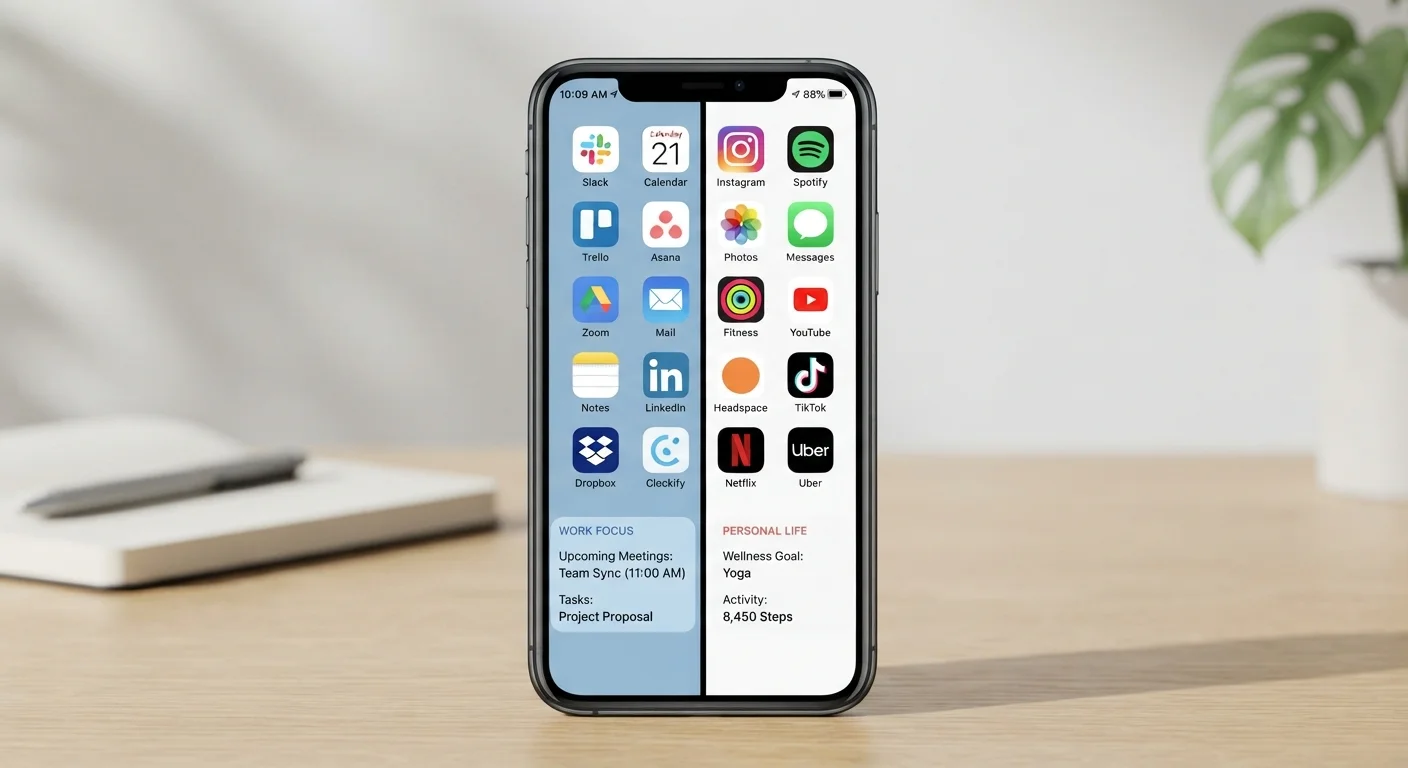
Assign apps to dedicated home screen pages or folders by context.
Physical organization on your device reduces the cognitive load of switching contexts. When work apps are grouped separately from personal ones, you reinforce the mental boundary each time you pick up your phone.
Set scheduled notification windows for work apps using Focus or Do Not Disturb modes.
Constant work notifications during personal time undermine boundaries even when apps are organized correctly. Scheduling when notifications surface is as important as where apps are installed.
Never save work credentials in a personal password manager, and vice versa.
Mixing credentials in one shared password manager creates a single point of failure for both contexts. If a personal device is compromised, work credentials are exposed — and some employers' security policies explicitly prohibit this.
Use a dedicated work SIM or eSIM profile for work calls and messages where possible.
On devices that support dual SIM or eSIM, maintaining a separate number for work keeps call logs, SMS, and voicemail cleanly divided without requiring a second physical device.
Separation isn't a one-time setup — it requires consistent habits. If your device is accumulating apps across both contexts without a clear system, a periodic review helps. Our digital clutter audit guide walks through a practical process for deciding what to keep and what to remove.
Also consider reviewing which apps have access to sensitive data like your microphone, contacts, or location. Work apps that access personal contacts — or personal apps that access work files — are worth scrutinizing. Understanding what app permissions actually mean is a useful next step once your separation framework is in place.
Quick Wins You Can Act on Today
If your work and personal accounts share a cloud sync service, check your sync settings carefully. Contacts, calendars, and files that sync to a shared destination are a common source of the "mixing" problem that most people don't notice until something goes wrong. Our article on why syncing goes wrong covers how to diagnose and fix these conflicts.