

Key Takeaways
Start here
What 'Consumer Electronics' Actually Means
Build vocabulary
Hardware Specs Explained in Plain English
Understand connectivity
How Your Devices Connect to Each Other and the Internet
Go deeper
Smart Devices: What Makes Them 'Smart'
Troubleshoot
When Things Go Wrong: First Steps Before Assuming It's Broken
Maintain
Keeping Your Gadgets in Good Shape
What 'Consumer Electronics' Actually Means
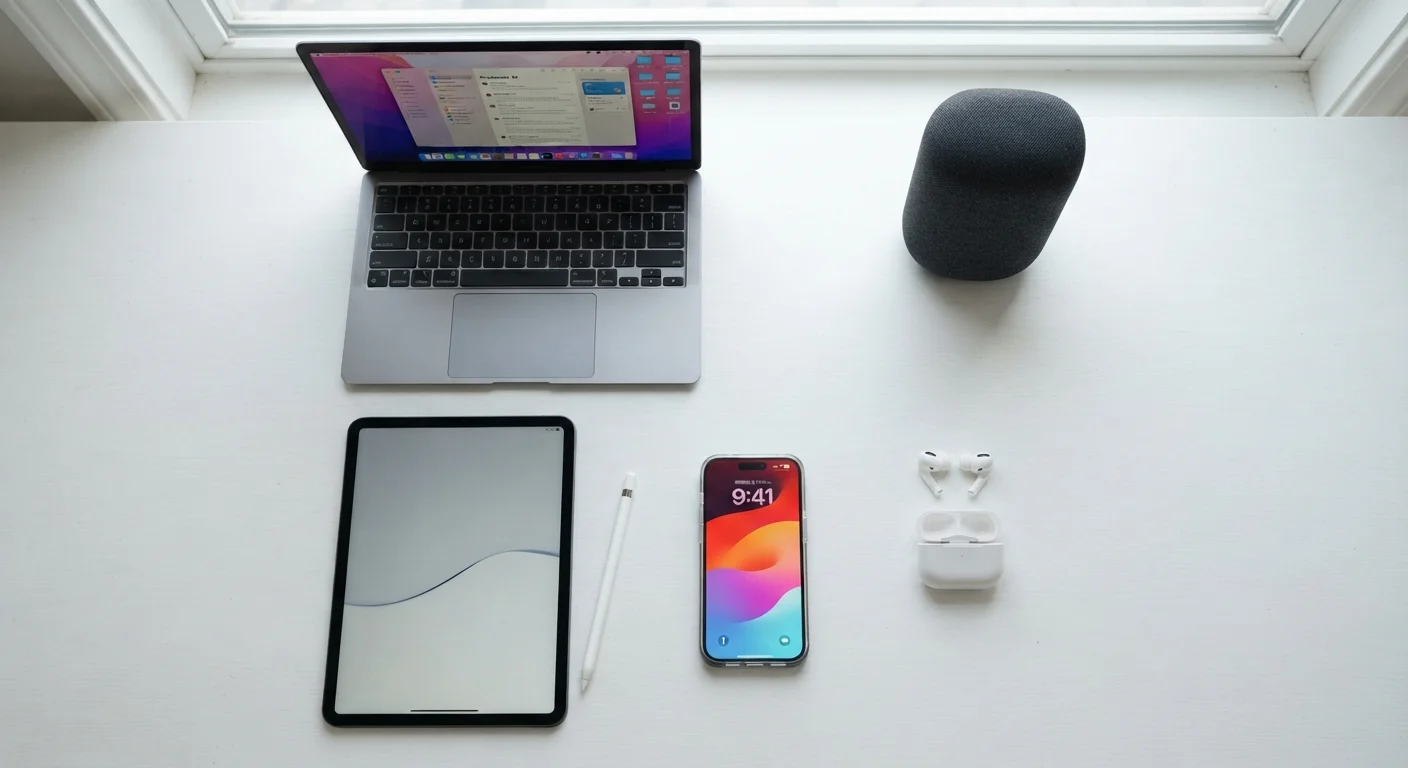
Consumer electronics is the broad term for electronic devices designed for everyday personal use — as opposed to industrial or medical equipment. Smartphones, laptops, tablets, smart TVs, wireless earbuds, smart speakers, and game consoles all fall under this umbrella. What they share is that they process, store, transmit, or display information in some form.
Understanding these devices doesn't require an engineering degree. Most confusion stems from unfamiliar vocabulary rather than genuine complexity. Once you have a mental model of what the main components do, the jargon in product descriptions and support articles starts to make intuitive sense.
Operating system (OS)
The foundational software that runs a device and lets you use apps. Common examples are Android and iOS on phones, and Windows and macOS on computers.
Processor (CPU)
The chip that executes instructions and runs programs. Think of it as the brain — a faster processor handles more demanding tasks without slowing down.
RAM
Short-term memory your device uses while actively running apps. More RAM means smoother multitasking; it does not store files permanently.
Firmware
Low-level software embedded in a device's hardware, like the code inside a router or smart TV. Firmware updates can fix bugs and add features just like app updates.
Bandwidth
The maximum rate at which data can travel over a connection. Higher bandwidth allows faster downloads and smoother video streaming.
Cloud storage
A service that stores your files on remote servers accessible over the internet, rather than only on your device. Photos and documents synced to a cloud service are accessible from any signed-in device.
Hardware Specs Explained in Plain English
When you look at a device's specifications, four numbers matter most for everyday performance:
- Processor (CPU): The brain of the device. Faster processors handle demanding tasks — video editing, gaming, multiple open apps — without slowing down. For everyday browsing and streaming, even modest processors perform well.
- RAM: Short-term working memory. More RAM lets you keep more apps open simultaneously without lag. Phones typically ship with 4–12 GB; laptops often range from 8–16 GB for general use.
- Storage: Long-term space for your files, apps, and operating system. Solid-state drives (SSDs) found in modern laptops are significantly faster than the older spinning hard drives they replaced.
- Battery capacity (mAh or Wh): A larger number generally means longer runtime, though software efficiency and screen brightness affect real-world battery life as much as raw capacity.
Screen resolution, camera megapixels, and port types matter too, but they're secondary to these four fundamentals for most users.
Read Specs Relatively, Not Absolutely
You rarely need to know what a specific processor model means in isolation. Instead, compare specs between two options you're considering — more RAM, faster storage, and a newer processor generation generally translate to a longer useful life. Manufacturer spec pages and independent tech publications often explain what a given spec tier means for real-world use.
How Your Devices Connect to Each Other and the Internet
Almost every modern gadget depends on one or both of two wireless technologies:
- Wi-Fi
- Connects devices to your home router and through it to the internet. The number after Wi-Fi (such as Wi-Fi 6) indicates the generation — newer generations support faster speeds and handle more simultaneous devices more efficiently. For a deeper look at setting up a home network, see the home networking beginner's guide.
- Bluetooth
- A short-range radio link (typically under 30 feet) used to connect accessories like headphones, keyboards, and speakers directly to a device without a router. Pairing — introducing two devices to each other once — is all that's required.
Many devices also support wired connections via USB-C, HDMI, or Ethernet, which can offer more reliable speeds and don't depend on signal quality. Understanding connectivity basics is foundational to everything in the Internet & Connectivity space.
Wi-Fi Frequency Bands: 2.4 GHz vs. 5 GHz
Most modern routers broadcast on two frequency bands. The 2.4 GHz band travels farther and passes through walls more easily but is slower and more prone to interference. The 5 GHz band is faster but has a shorter effective range. Devices close to the router generally benefit from the 5 GHz band; devices far away may connect more reliably on 2.4 GHz.
Smart Devices: What Makes Them 'Smart'
A device earns the label 'smart' when it combines three things: sensors that collect data, connectivity to share that data, and software that acts on it — often automatically or on a schedule. A smart thermostat, for example, reads the temperature (sensor), reports to an app (connectivity), and adjusts your heating based on your patterns (software logic).
Smart speakers add voice recognition to this mix, letting you interact through natural language. The privacy implications of smart home devices are worth understanding, since these gadgets collect data by design. Most platforms offer settings to limit data retention and review recordings.
Apps are the software layer that makes smart devices usable. Getting familiar with how apps work on your platform — whether iOS, Android, or a TV operating system — pays dividends across every device you own. Explore how apps fit into daily life in the Apps & Software hub.
When Things Go Wrong: First Steps Before Assuming It's Broken
A large proportion of device problems resolve with a handful of simple interventions — no technical knowledge required:
- Restart the device. This clears temporary software errors and frees up RAM. It's the single most effective first step for the widest range of problems.
- Check the obvious physical causes. Is it charged? Is the cable seated properly? Is the volume muted or the Wi-Fi turned off?
- Update the software. Manufacturers release patches that fix known bugs. An outdated operating system is a common source of instability.
- Reboot the router if the issue is internet-related. Unplug it for 30 seconds, then plug it back in.
- Check manufacturer support pages. Most companies maintain searchable knowledge bases with solutions to common issues.
For a structured checklist covering more situations, see Things Worth Checking Before You Assume a Device Is Broken.
Avoid Factory Resets as a First Response
A factory reset erases all personal data, settings, and installed apps, returning the device to its out-of-box state. It's a last resort, not a first step. Always back up important data before resetting, and exhaust simpler troubleshooting steps first. Accidental resets without a backup can result in permanent data loss.
Keeping Your Gadgets in Good Shape
Two habits have an outsized effect on how long your devices stay useful: keeping software updated and managing storage. Updates deliver security patches and bug fixes; neglecting them leaves devices vulnerable and increasingly unstable. A storage drive that's nearly full causes noticeable slowdowns because the operating system needs free space to function efficiently.
Beyond software, a few physical habits help: avoid leaving devices in hot cars or direct sunlight (heat degrades batteries faster than almost anything else), use a protective case for portable devices, and don't charge overnight repeatedly on older battery hardware if the device doesn't have smart charging built in.
For a thorough breakdown of evidence-based maintenance practices, the guide to keeping your gadgets running longer covers storage hygiene, heat management, and software discipline in detail.
Manufacturer Support Centers
Every major device maker maintains a searchable support site with troubleshooting guides, software downloads, and warranty information specific to your model.
Internet & Connectivity Hub
A curated collection of beginner-friendly articles covering home networks, internet speeds, and online security — foundational knowledge for any device owner.
Apps & Software Hub
Explore how everyday apps and software tools work across platforms, helping you get more out of the devices you already own.