

Key Takeaways
Why USB Naming Is So Confusing
USB — Universal Serial Bus — was supposed to simplify device connectivity. In many ways it has. But decades of revisions, rebranding, and competing standards have turned the USB ecosystem into one of consumer tech's most notorious sources of confusion.
Part of the problem is that the USB Implementers Forum (USB-IF), the body that governs the standard, has renamed versions multiple times. What was once called USB 3.1 Gen 1 was previously USB 3.0 — and some manufacturers still label it differently on product packaging. Connector shapes, protocol versions, and power standards all evolve on separate tracks, which means a single port can be described three different ways depending on which attribute you're talking about.
This kind of standards complexity isn't unique to USB. The same challenge plays out in other industries — similar to how automakers classify their own vehicles, where one brand's crossover is another's SUV. With USB, a little framework goes a long way.
40 Gbps
Peak speed of USB4 Gen 3×2
USB4, introduced in 2019, matches Thunderbolt 3 and 4 throughput and requires USB-C connectors.
240 W
Maximum power under USB PD Extended Power Range
The USB-IF's Extended Power Range revision to USB Power Delivery enables charging large laptops and workstations via USB-C.
3
Different names USB 3.0 has held
USB 3.0 was renamed USB 3.1 Gen 1, then USB 3.2 Gen 1 — the same spec marketed under three names.
Connector Types: Shape Tells You Less Than You Think
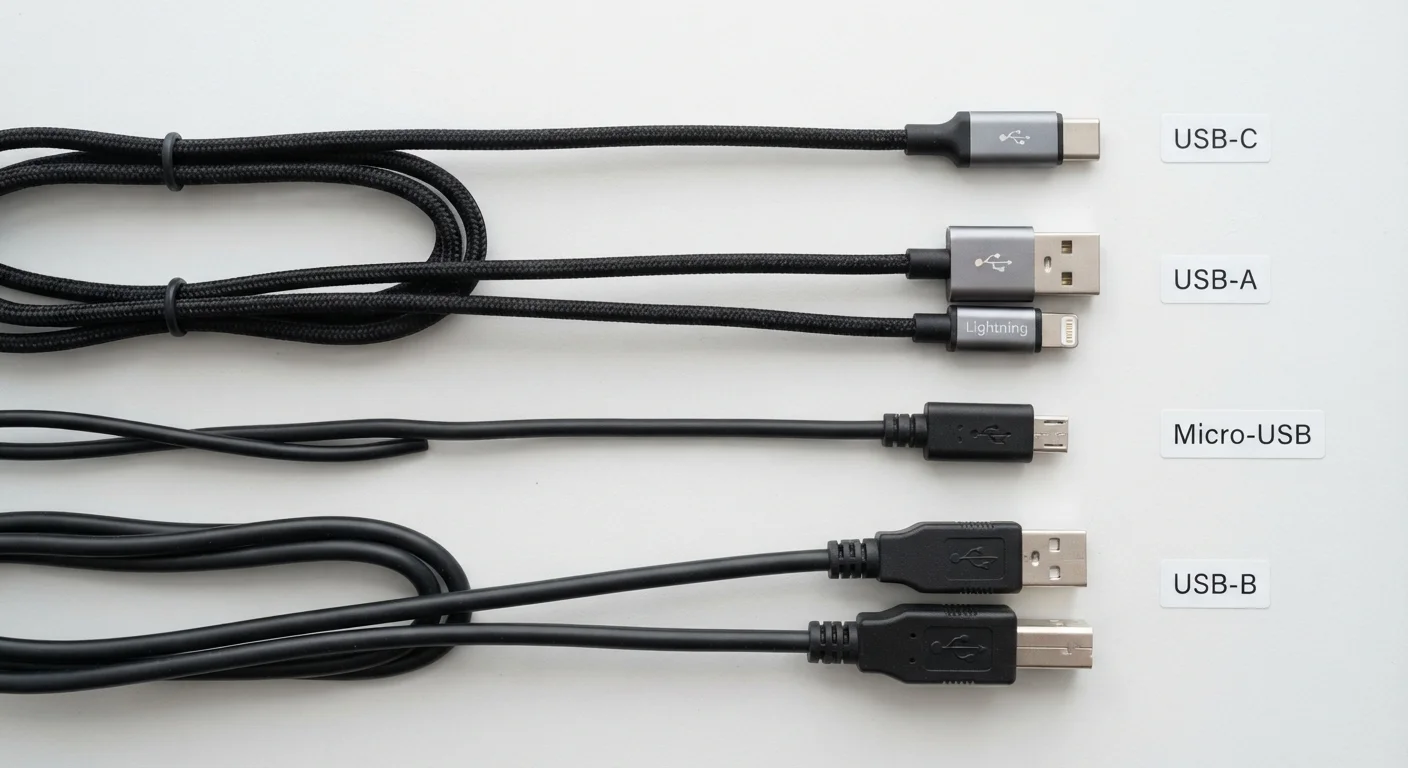
USB connectors are the physical plugs and ports you see. The most common types are:
- USB-A: The rectangular plug found on most computers, chargers, and hubs. It's been around since USB 1.0 and is still widespread, though it's beginning to disappear from thinner laptops.
- USB-B: A squarish connector once common on printers and external hard drives. Rarely seen on new consumer devices.
- Micro-USB: The small trapezoid connector that dominated Android phones and accessories through the 2010s. Still found on some budget devices and accessories.
- USB-C: An oval, reversible connector now standard on most smartphones, laptops, tablets, and accessories. USB-C is the connector of the present and near future.
Here's the critical point most buyers miss: the connector shape tells you nothing about speed or power capability. A USB-C port on a budget device may support only USB 2.0 speeds (480 Mbps), while a USB-A port on a high-end hub could run at USB 3.2 Gen 2 speeds. Always check the version alongside the connector type.
USB-C Is a Connector, Not a Speed Standard
It's a common misconception that USB-C means fast. USB-C is only a connector form factor. A device manufacturer can pair a USB-C port with USB 2.0 internals, which caps transfer speeds at 480 Mbps — slower than a USB-A 3.2 Gen 1 port. Always verify the USB version specification, not just the connector shape.
USB Versions and Transfer Speeds
USB versions govern how fast data moves. Here's a clear reference, using the current USB-IF naming alongside the older names you'll still encounter in the wild:
| Current Name | Also Known As | Max Speed |
|---|---|---|
| USB 2.0 | Hi-Speed USB | 480 Mbps |
| USB 3.2 Gen 1 | USB 3.0 / USB 3.1 Gen 1 | 5 Gbps |
| USB 3.2 Gen 2 | USB 3.1 Gen 2 | 10 Gbps |
| USB 3.2 Gen 2×2 | (USB-C only) | 20 Gbps |
| USB4 Gen 2×2 | USB4 20 | 20 Gbps |
| USB4 Gen 3×2 | USB4 40 | 40 Gbps |
USB4 — note the absence of a space — is the newest major version, introduced in 2019. It's based on Thunderbolt 3 technology and requires USB-C. For everyday users, USB 3.2 Gen 1 (5 Gbps) covers most external drive and accessory needs. You'll only notice the difference at higher tiers when transferring large files regularly.
When evaluating a USB hub or dock, look at the total bandwidth budget — not just individual port ratings. A hub advertising multiple USB 3.2 Gen 2 ports may share a single upstream connection, splitting available bandwidth among all active ports.
Shared bandwidth is a common source of real-world underperformance that port-speed marketing never mentions.
If you're using a USB-C cable for laptop charging at high wattage, look for cables with an e-marker chip — these embedded chips communicate power ratings to both devices and are required for cables carrying more than 60 W.
Without an e-marker, a cable will cap negotiated power regardless of what the charger or device can support, leaving you with slower charging.
USB Power Delivery and Charging Standards
Transfer speed and charging speed are separate concerns governed by different specifications. The main charging standards to know:
- Standard USB charging: Basic USB 2.0 provides 2.5 W; USB 3.x ports typically supply 4.5–9 W without additional negotiation.
- USB Power Delivery (USB PD): The official USB-IF fast-charging standard. USB PD can negotiate power levels between device and charger, supporting up to 240 W under the Extended Power Range (EPR) revision — enough to charge large laptops. USB PD requires USB-C.
- Proprietary fast-charging protocols: Various manufacturers implement their own systems (such as Qualcomm Quick Charge) over USB-A or USB-C. These often deliver faster charging on compatible hardware but may fall back to standard speeds on other devices.
When charging matters most — say, for a laptop or a device you rely on daily — look for a charger and cable that both explicitly support USB PD and match your device's wattage requirements. The cable is frequently the bottleneck: many USB-C cables are rated only for data or low-power charging, not high-wattage delivery.
Cheap USB-C Cables Can Be a Real Problem
Low-quality USB-C cables have, in documented cases, caused overheating or failed to deliver rated wattage, resulting in slow or interrupted charging. This is particularly relevant for laptop chargers rated above 60 W. Sticking to cables from reputable sources and checking for USB-IF certification reduces this risk meaningfully.
Thunderbolt vs. USB: What's the Actual Difference?
Thunderbolt is a hardware interface developed by Intel (in collaboration with Apple) that uses the USB-C connector. Because the plug looks identical, the distinction confuses a lot of buyers.
Key differences from standard USB:
- Speed: Thunderbolt 3 and 4 support 40 Gbps. Thunderbolt 5, introduced in 2023, reaches 120 Gbps for display bandwidth and 80 Gbps for data.
- Display output: Thunderbolt natively supports DisplayPort and, in some configurations, HDMI over the same cable.
- Daisy chaining: Multiple Thunderbolt devices can be connected in series from a single port.
- Certification: Thunderbolt devices and cables must meet Intel's certification requirements. A plain USB-C cable will not achieve Thunderbolt speeds even if plugged into a Thunderbolt port.
Thunderbolt ports are backward compatible with USB-C devices — a standard USB-C drive plugged into a Thunderbolt port works fine, just at USB speeds. Look for the lightning bolt icon next to a port to identify Thunderbolt. USB4 Gen 3×2 (40 Gbps) overlaps significantly with Thunderbolt 3/4 performance, which is by design — USB4 was built to be compatible with Thunderbolt 3.
For more on how wired connections compare in practical use, see our guide on wired vs. wireless peripherals.
Practical Tips for Buying Cables and Accessories
Armed with the framework above, here's how to apply it when shopping for cables, hubs, and accessories:
- Check your device specs first. Identify the USB version and power delivery rating of your device's port before buying accessories. Your device manual or manufacturer's website is the most reliable source.
- Match the cable to the task. If you need fast data transfers, buy a cable explicitly rated for the speed you want (e.g., USB 3.2 Gen 2 at 10 Gbps). If you need high-wattage charging, confirm the cable is rated for that wattage — cables often list their maximum amperage and voltage on packaging or in specs.
- Look for USB-IF certification marks. Cables and adapters that carry USB-IF certification have been tested to meet the claimed spec. Uncertified cables, especially cheap USB-C cables, can underperform or in rare cases cause compatibility issues.
- Don't assume all ports on a hub are equal. Multi-port USB hubs often include a mix of USB 3.x and USB 2.0 ports. Check which port supports which speed before plugging in your external drive.
- Thunderbolt cables are not interchangeable with all USB-C cables for high-speed use. If a Thunderbolt device is underperforming, confirm you're using a certified Thunderbolt cable, not a generic USB-C cable.
USB complexity extends into broader connectivity topics — if you're sorting out home networking hardware alongside device connectivity, our home network basics guide covers what routers, modems, and access points actually do. And if you're comparing USB to wireless alternatives like Bluetooth versions, understanding each standard's real-world limits helps you choose the right tool for the job.
Use Your Device's Included Cable as a Benchmark
The cable shipped with a device is typically rated to match that device's maximum supported speed and charging wattage. If a replacement cable underperforms — slower charging, reduced transfer speeds — compare its ratings against the original. The original cable is a reliable baseline for what your device actually supports.