

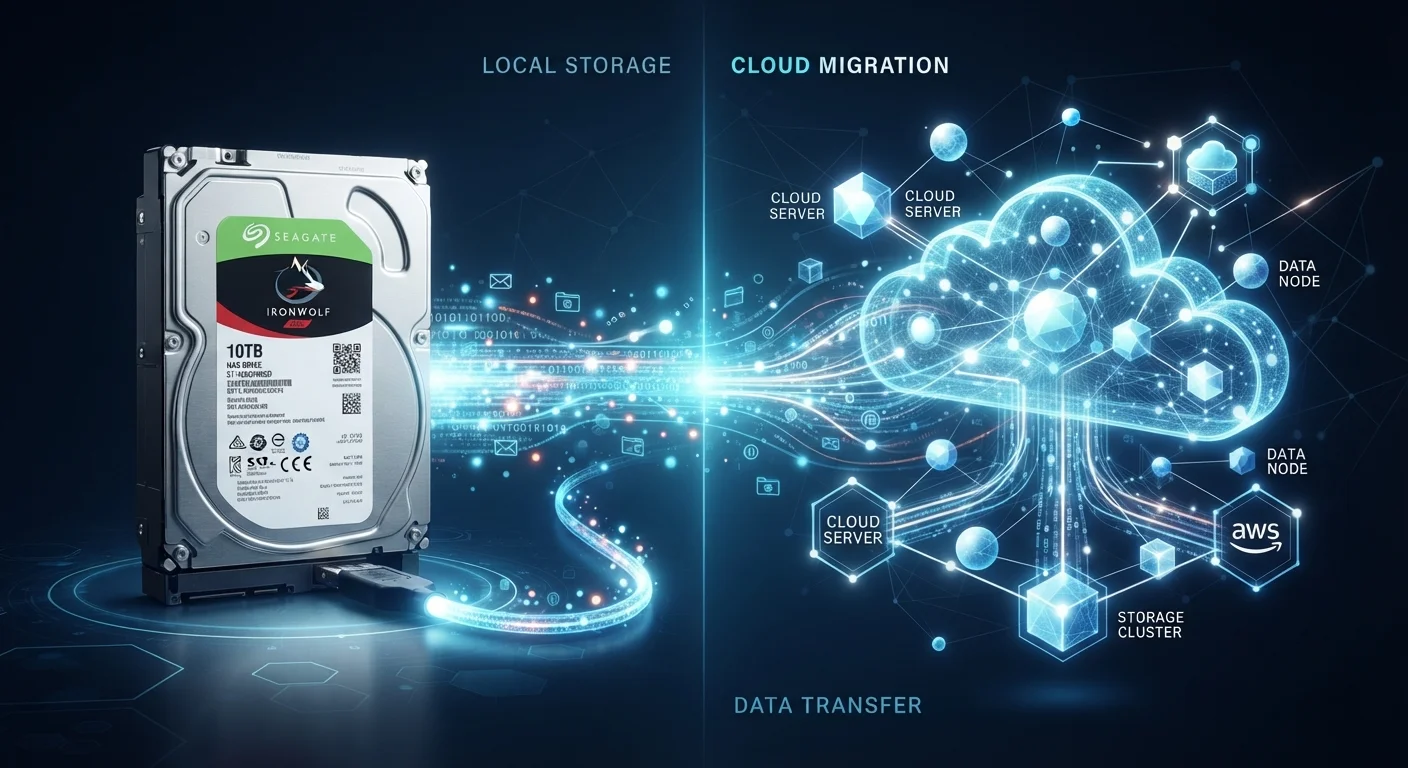
Key Takeaways
Option A
Cloud Storage
Files hosted on remote servers, accessible anywhere with an internet connection.
Best for: Users who need to access or share files across multiple devices and locations.
Option B
Local Storage
Files saved directly on your device or a physical drive you own.
Best for: Users who prioritize offline access, privacy control, and one-time hardware costs.
If you frequently switch between a phone, tablet, and laptop
Cloud Storage
Cloud services sync files automatically across devices, so your latest version is always available regardless of which device you pick up.
If you work in areas with unreliable internet or handle sensitive documents
Local Storage
Local storage gives you full offline access and keeps your data off third-party servers, which matters when connectivity or privacy is a concern.
If you want maximum protection against data loss
Cloud Storage
Reputable cloud services maintain redundant, geographically distributed backups, reducing the risk of permanent file loss from device failure or theft.
If you store large media libraries and want to avoid recurring subscription costs
Local Storage
A one-time purchase of an external drive or NAS device can hold terabytes of data without the monthly fees common to cloud plans.
If you want a balanced, resilient setup for everyday files
Both (Hybrid)
A hybrid approach — keeping working files in the cloud and archiving important data locally — protects against both hardware failure and service outages.
What Each Term Actually Means
When you save a file, it ends up in one of two places: on a physical storage medium attached to (or inside) your device, or on a server located in a data center somewhere else in the world. The first is local storage; the second is cloud storage.
Local storage includes the solid-state drive (SSD) or hard disk drive (HDD) built into your laptop or desktop, as well as external USB drives and memory cards. The files are physically present near you, and accessing them requires no internet connection. If you've ever wondered about the distinction between a device's storage and its memory, our piece on RAM vs. storage explains how those two components differ.
Cloud storage, by contrast, means your files are transmitted over the internet and written to servers managed by a service provider. Services like Google Drive, iCloud, Dropbox, and OneDrive all operate this way. When you open a file from the cloud, your device retrieves it over the internet — even if the experience feels instant on a fast connection.
| Criterion | Cloud Storage | Local Storage |
|---|---|---|
| Where files are stored | Remote servers (data centers) | Device drive or external hardware |
| Internet required | Yes, to access or sync files | No |
| Cost model | Recurring subscription (free tiers limited) | One-time hardware purchase |
| Multi-device access | Automatic sync across devices | Manual transfer required |
| Privacy control | Governed by provider's terms | Fully under your control |
| Failure risk | Provider outages; service shutdown risk | Hardware failure, theft, or damage |
| Redundancy | Built-in (provider manages backups) | User must create backups manually |
| Typical capacity ceiling | Scales with subscription tier | Fixed by hardware purchased |
Key Trade-offs: Access, Cost, and Control
Accessibility: Cloud storage shines when you need a file on a device you didn't start the project on. The sync happens automatically, so your phone, tablet, and laptop all see the same up-to-date version. Local storage requires deliberate steps — copying files to a USB drive or using a transfer cable — to move data between devices.
Cost structure: Local storage is largely a one-time hardware purchase. A 2 TB external drive can hold a substantial media library for a fixed price. Cloud storage typically uses a subscription model; free tiers exist but impose capacity limits, and heavier users pay monthly or annually for expanded space.
Control and privacy: With local storage, you own the hardware and the data on it. With cloud storage, your files sit on infrastructure you do not control. That isn't inherently dangerous — reputable providers use encryption in transit and at rest — but it does mean a provider's terms of service, a security breach, or a service shutdown can affect your access. It's worth understanding what happens to files when a service closes before committing important data to any single platform.
60%+
Share of global data stored in cloud infrastructure
Industry analysts estimate the majority of enterprise data is now held in cloud or hybrid environments, a share that has grown steadily throughout the 2020s.
1 in 3
PC users who have experienced data loss
Surveys by data recovery firms consistently find that a significant minority of computer users have lost files due to hardware failure, accidental deletion, or device damage.
Reliability: Local hardware fails. SSDs and HDDs have finite lifespans, and physical drives can be lost, stolen, or damaged. Cloud providers mitigate this with redundant infrastructure — multiple copies of your data spread across different servers — but they are not immune to outages or, in rare cases, data loss events of their own.
The Case for Using Both
The most resilient approach for most people is a hybrid strategy. The longstanding backup principle often cited by data-recovery professionals is to keep at least three copies of important data: two on different local media and one stored off-site (which a cloud service effectively provides). This isn't a firm universal standard, but the general principle — redundancy across different physical locations — is sound.
In practice, this might look like: keeping actively used documents in a cloud-synced folder for convenience, while periodically copying irreplaceable files (family photos, tax documents, creative work) to an external drive stored separately. For many people, the apps they already use blur this line. A cloud-enabled app accessed through a browser behaves differently than a downloaded app working with local files — a distinction explained in depth in our native apps vs. web apps guide.
The right balance depends on your specific habits: how often you switch devices, whether you have reliable internet, how sensitive your data is, and how much ongoing cost you're willing to absorb. Understanding where your files actually live — rather than assuming — is the first step toward a storage setup that won't surprise you at the worst possible moment. You can also apply similar thinking when doing a broader digital clutter audit of your devices and apps.
"Syncing" Is Not the Same as Backing Up
A common misconception is that cloud sync services like Google Drive or Dropbox act as automatic backups. In reality, sync mirrors whatever is on your device — including deletions. If you delete a file locally, the sync service will remove it from the cloud too (often within a short recovery window). A true backup preserves historical copies independently of what you do to the original. For important files, verify whether your service offers versioning or a dedicated backup mode, and don't rely on sync alone as your safety net.